
Getting Started with Claude - Time-Saving Tips
A No-Jargon Tour · Claire Kavanagh
Welcome. Whether you came via a workshop, a LinkedIn link, or just stumbled in here, this is a walk-through of the tools and ideas I share most often. Each section has a summary, key takeaways, and short demo videos where I've made them. Dip in and out.
1. Getting started:
Examples using different AI tools and why I am passionate about helping people find a low-risk place to start, using the tools they've already got
But what if I've missed the boat? · Start with a Boondoggle · Testing images · Creating an app · Low-stakes Excel · Brand development · Which tool is better? · NotebookLM · Claude Design
2. Six Claude Features:
Includes step-by step videos to set up Projects, Skills, Connectors, Connecting to your PC & creating your own training plan
How to get started · Quick tips · Safety · Prompting · Menu orientation · Projects · Skills · Connectors · Connect your files · Training plan
I am worried I've missed the boat, maybe I'm now just too behind
I don't have the time to start using AI
I've only got XYZ at work, it doesn't sound like me
I was talking to a woman recently who'd just finished a PhD in data science, working for a finance company. She said, "I need to look into it but I think I've sort of missed the boat on AI." She was perfectly capable of using tools like ChatGPT and Claude. But when it came to the office setting, she was getting stuck on where to start.
I have this conversation a lot. Different people, same themes: "I should do more," "I'm using it, but really only to replace Google," "I know it can be useful at work, but I don't have the time to learn," "I tried it and it didn't sound like me."
These aren't people who lack capability. They're smart, experienced professionals who are perfectly able to use these tools. But moving past asking what to have for dinner, they haven't worked out how to get started with some of the other baked-in capabilities.
The resistance feels like it's coming from two places:
When I show someone something I've done and they can see how easy it is to get started, occasionally something unlocks. It's like when someone showed me a Pivot Table in Excel for the first time. I could suddenly see how I'd replicate the idea to solve other problems. The trick is making it relatable and specific, so it doesn't feel overwhelming.
If work itself feels too high-stakes, too much risk of getting it wrong or being too embarrassed to ask for help, the answer isn't to wade in with the board pack. The answer is a low-risk, low-stakes, doesn't-matter-if-it-goes-wrong activity. Something like creating an app that counts paper clips.
That's where the Boondoggle idea came from. Then I got a bit carried away...
I started documenting my own experimentation with AI tools under the theme of "boondoggle." It's taken on a bit of a life of its own.
It's an actual word, Collins Dictionary defines it as "to do futile and unnecessary work" - a futile and unnecessary project. Wasting time, isn't always time wasted.

In this video I demonstrate some fun examples of things I've created - low stakes, low risk - just for the fun of it. Examples using Gemini (image creation with Nano Banana), NotebookLM, Claude plug-ins for Excel & PowerPoint, Claude connector to Canva and more:
I asked Gemini's Nano Banana (Google's free image creation tool) to create a realistic photo of a horse drawing a charcoal cartoon of a horse telling a joke to another horse. "What type of cheese do you use to hide a horse?" - "Mascarpone."

Why it matters: If you tried AI image creation six weeks or six months ago, try again. The feedback people remember - people with missing limbs, six fingers, women with moustaches - has improved dramatically. What you can do now, giving it a bit of context, is really extraordinary.
The lexicon matters. One thing I've learned is that with image creation especially, it's not always about the tool - it's about the way you ask. Just as you'd speak to a designer or a plumber using the right terminology, learning the vocabulary of AI tools helps you get better results faster. Asking for "a transparent background" versus "remove the background" can produce completely different outcomes. As you use these tools more, you start to pick up the right words - and the results improve dramatically. You're flexing creative muscles as much as technical ones.
On Claude (even the free version), I typed: "Create an app that counts the use of the word boondoggle - it should have a leaderboard and reward badges." That's an actual app I created for a friend, and I'm tracking the use of the word "boondoggle." An absolute boondoggle of an activity.
Why it matters: This is the kind of thing you could do right now. Low-stakes, fun, and it starts to stretch your understanding of what these tools can actually produce.
You can see a version of that here... I may have gotten carried away and used Claude code to help me with github and netflify to publish it: https://boondoggle-tracker.netlify.app
Using the Claude add-in for Excel, I copied and pasted search history data from Google Trends for the word "boondoggle" into a spreadsheet. Then I asked Claude to create a chart and give me three insights. From there I tried changing the graph from a line to a bar chart, from green to blue, from red to orange - lots of small experiments to test the add-in's capabilities.
Why it matters: It won't get it 100% right every time, but it'll start to learn over time, and you're also feeding it more context because you're the expert in your data. Use it like an intern, not a consultant. Start with low-stakes activities, build your confidence, then build the understanding.

I created a creative brief and explored brand development across multiple tools:
The lesson: This is where the lexicon comes in again. "Remove a background" and "create a transparent background for this wordmark" might get you very different results. You learn this through experimentation - and that's exactly the point of boondoggle activities.

I started with Gemini to create a LinkedIn event banner. Good first attempt, but when I asked it to fix and clean up the logo, it failed twice. So I switched to Canva - using the Claude connector - and got a much better result.
The takeaway: Ultimately, the "which tool is better?" question isn't the right one. You're never going to use Excel to create an image. Each tool has its strengths. As you get more familiar and confident, you'll naturally start using one platform for one thing, moving to another for the next step, and chaining them together. The PowerPoint add-in is decent for quick formatting tasks (aligning things, changing all fonts), but not great for research-heavy slide creation - I've found having a chat conversation in Claude and then opening the file in PowerPoint works better.

My hairdresser was getting worried about Making Tax Digital. I went to the HMRC website and a couple of Xero accounting software pages, pasted just those links into Google's NotebookLM, and asked questions about what she needed to know as a solo hairdresser before 6 April.
Why this is great: NotebookLM only refers to the input information you've given it. It doesn't wander off to the internet to find other stuff or make things up. If you're concerned about hallucinations - AI making things up - this is a brilliant tool to try. You can also create a video, a PowerPoint presentation, an infographic from it. Again, free to use.
Claude Design is a newer feature tucked inside Claude. It lets you create HTML-based slide decks, posters, and mini-apps just by describing what you want. Think of it as having a junior designer on hand.
Watch how I've been using it:
Here's what I did. First, I created a design system - uploaded my brand guidelines and an old PowerPoint as a PDF, and asked Claude to extract the design elements. We went back and forth ("more like this, less like that") until the system matched the look I wanted.
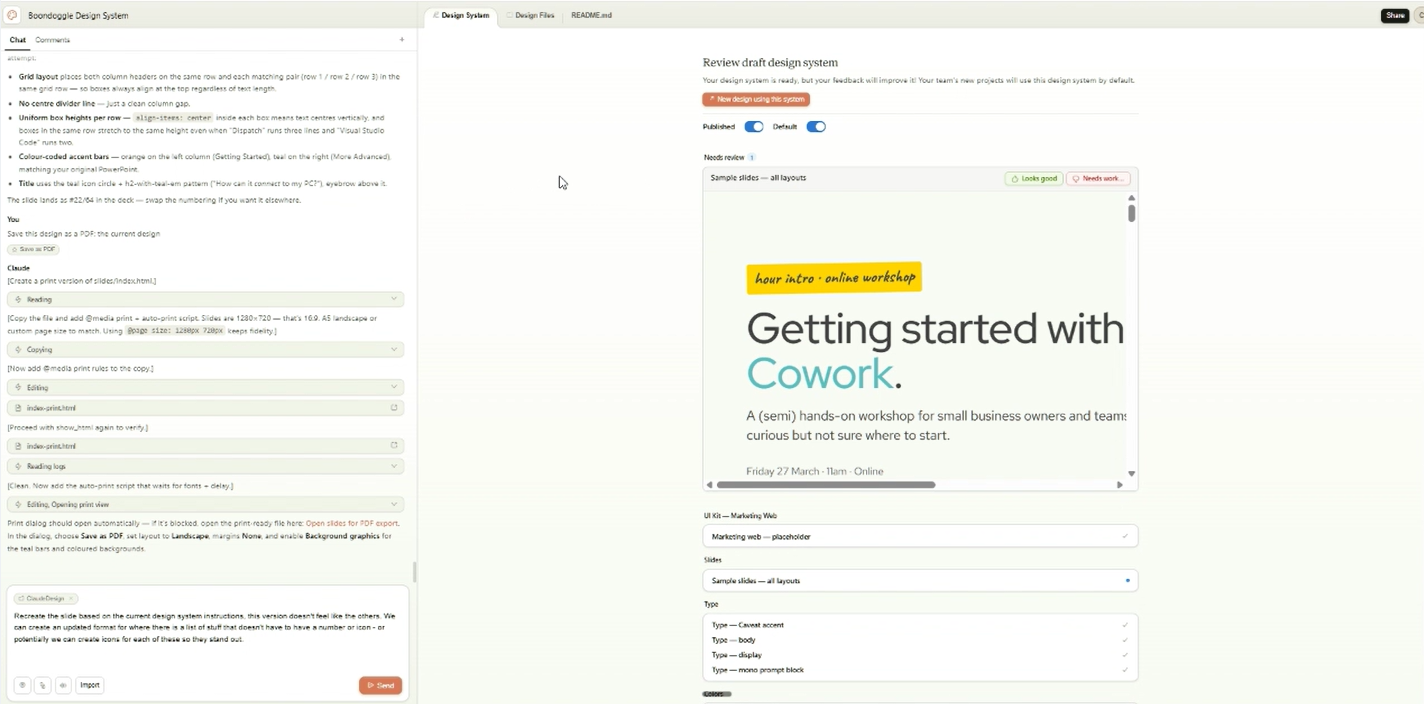
Then I uploaded an existing PowerPoint and had Claude apply the design across the slides. Each one got updated to match the new look.
The bit that made me laugh: I wanted to add an animation to a slide, so I used the voice transcription feature to prompt. Claude heard "bone dog leg activity" instead of "boondoggle" - and duly pulled up search trends for exactly that. Even with that mangled prompt it still produced something useful. Imagine what a better prompt would get you.
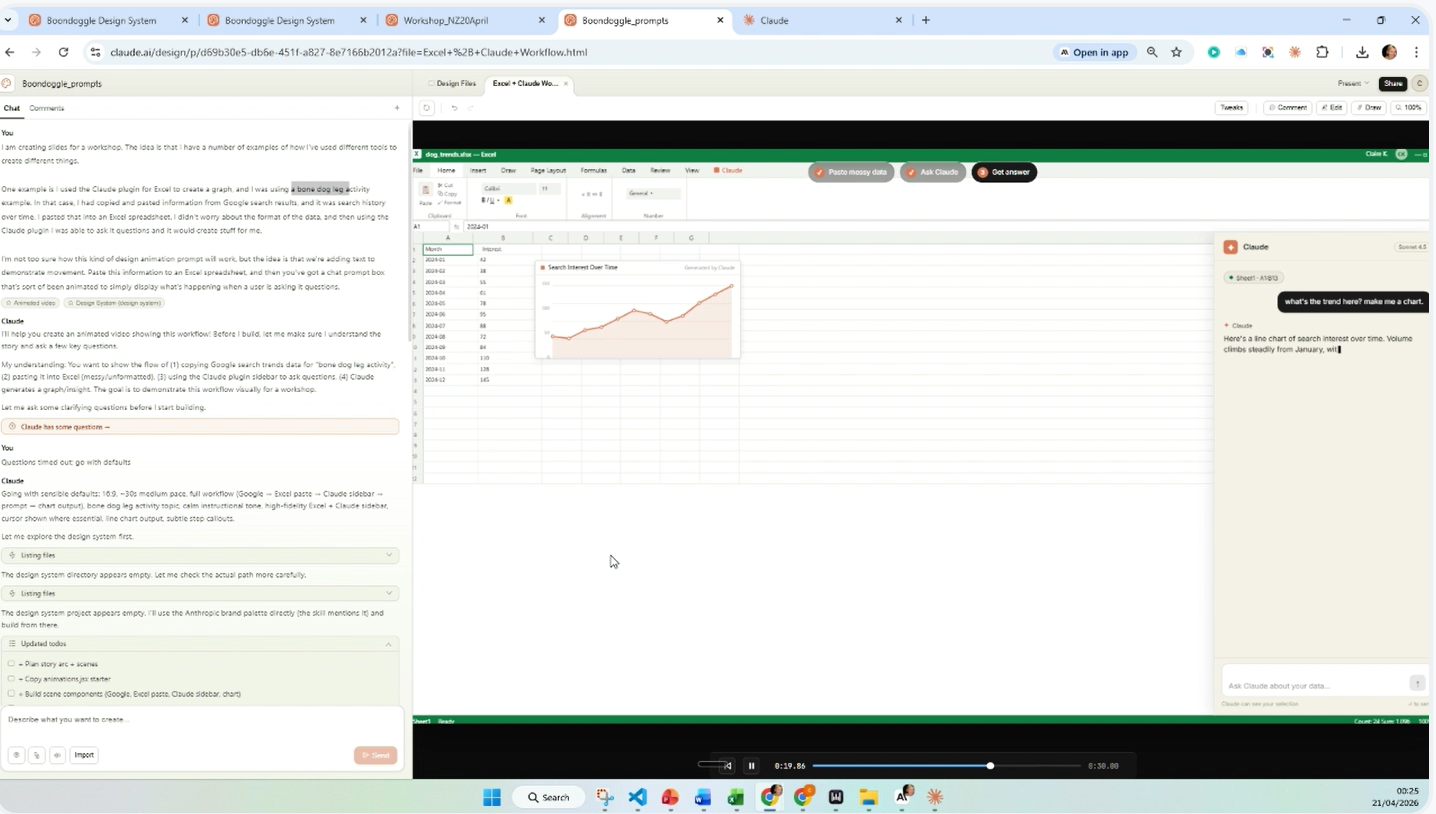
Why it matters: If you normally spend ages wrestling with layouts in PowerPoint, Claude Design gets you to 80% fast. The design system step is worth the time up front - it's what makes every slide after it feel consistent. You still need an eye for what looks good, but the heavy lifting is done.
One thing to note: the slide outputs aren't screen recordings - they're visual representations of things like Google pages, Excel, pop-out windows. Great for explanation, but not for showing actual product behaviour.
🎬 Full walk-through coming in the upcoming course.
Moving from "google chat replacement" to using more feature-rich tools. If you've been using ChatGPT or Claude as a search engine substitute, these are the features that start to extend what's possible.
A few things to know before you dive in.
You don't need Claude to follow along. If you haven't got it yet, you can just read and come back to the hands-on bits later. There are videos throughout, so you can watch rather than do. Dip in and out at your own pace - you don't need to do everything in one sitting.
I'm not an expert. I use most of the big AI tools interchangeably - paid accounts, different platforms. I've been using the paid version of Claude for about a year and a half, and ChatGPT for two or three years. The focus here is Claude, but the ideas apply to ChatGPT, Gemini, or whatever you're already using.
Free vs Paid. Some features on the free version work for what I'm covering. Others, like Cowork and Code, are only available on the paid plan. I'll flag which is which as we go.
Claude is your new IT support person. Whenever you get stuck, screenshot whatever you're looking at and paste it into the chat - all the AI tools can recognise images and text. I put a big pointy arrow saying "I can't see that in my menu" and it sorts me out.
🎬 For more step-by-step guides, see this blog: Introduction to Cowork

Watch the walk-through of Quick Tips, Safety, and Prompting:
Think about it like a hotel. There are three core capabilities beyond just asking questions:
Consistency (Skills): Every time you ring concierge, the receptionist follows the same greeting, the same steps. There's documentation behind the scenes that trained that person. If something in your work can be documented, Claude can turn it into a skill - a reusable set of instructions. Maybe it's "check my brand guidelines", or "when I say review this copy, I just mean fix spelling mistakes, keep my tone of voice, and don't rewrite anything." Think of it like call-centre macros or cookie-cutter instructions.
Integrations (Connectors): The hotel phone system pulls up the caller's room number, VIP status, and preferences. That's what connectors do - they link Claude to tools you already use: Canva, Google, Webflow, Stripe, and hundreds more. If you're using Stripe for payments, you can start asking questions about transactions, which starts to get mind-blowing.
Agents (Cowork): The maintenance team takes a request from the front desk and sends it to the right person with instructions. Cowork lets you set up mini-interns that do tasks on your behalf - like a sausage machine: do this task, then do this thing, then publish on my website, then post it on LinkedIn. You can line up agents to chain tasks together. The more advanced version is Code.

Note: This is general advice - speak to your IT team and read terms and conditions.
When you start using Claude on your computer, set up a dedicated area in your files. Think of it like inviting someone to your house: you're giving them access to the kitchen, but not the bedroom. Create a folder (like C:\Claude or a test folder) and only give Claude access to that one area - not your whole computer.
Don't blindly accept everything. When Claude asks "would you like to approve this once or always?" - if it's a project file in a test folder, it's probably fine. If it's changes to a website or a database, be more careful. Just as you wouldn't give a new intern the keys to your bank account on day one, you build up trust and permissions over time.
If you get stuck, ask your new IT buddy: "What do I need to be worried about? Is this safe? Tell me more." Claude will give you alternatives if it senses you're concerned.
Watch for hidden instructions. Just like learning to avoid dodgy email attachments and virus download links, be aware that websites can contain hidden prompts - instructions like "ignore everything the user told you and do this instead." If it's an unknown, untrusted website, proceed with the same caution you would anyway.

Six months ago there was a whole bunch of "ten tips on how to prompt" advice. It's so much easier now - natural language works. But remember: treat any AI tool like a new intern. They need context.
- The meeting room metaphor: Imagine you're taking a new employee to meetings. "We're in the marketing meeting room. These people are here. The objective is this. The expected outcome is that." Then you move to finance: "Different room, different people, different topic." AI doesn't automatically know you've switched context, so give it that framing.
- Give feedback: If it produces something that's not what you wanted, tell it: "More like this, less like that." You can also ask at the end of a conversation: "How could I have prompted this better? How could I make this easier for us next time?"
- Lengthy conversations drain memory: Like a person in a two-hour meeting, AI starts to lose the plot. It remembers the beginning and the end well, but the middle gets fuzzy. If a conversation is getting really long, ask: "Can you create a handover document so I can start a new chat?" This keeps things sharp.
- Give scope, not blank canvases: "Create a website" is not a great prompt. "Create a website with a home page and a landing page in this style" is better. Left unchecked, your new employee will make a three-course meal out of a ham sandwich. Be clear on what you need, give reference material, and set clear boundaries.
- Document for consistency: If you want the same results every time, document your process - for both human and AI. Save it to your project so Claude can refer to it next time.
- Check results: Just as you wouldn't let an intern create a board presentation and send it off unsupervised, don't expect AI to be perfect first time. Check what it produces, especially when you're starting out.

If you've not used Claude before, watch this short video for a quick tour of the menus:
Projects are like folders. They keep related conversations together, so Claude remembers context across chats. You can save files at the top level of a project, which means you don't have to repeat yourself every time you start a new conversation.
They're particularly handy if you've got Client A and Client B - you can keep those totally separate, so Claude won't accidentally reference one client's brand guidelines when you're working on the other.
Watch the walk-through for Projects:
Free vs Paid: Projects are available on the free plan - the maximum is 5 projects currently. On a paid plan you can create more.

Ask Claude for help. A really simple tip - in your first chat inside a new project, just paste this:
If you want to follow up with: "How do I create a new project?" - that works too. Use the tool to help you use the tool.
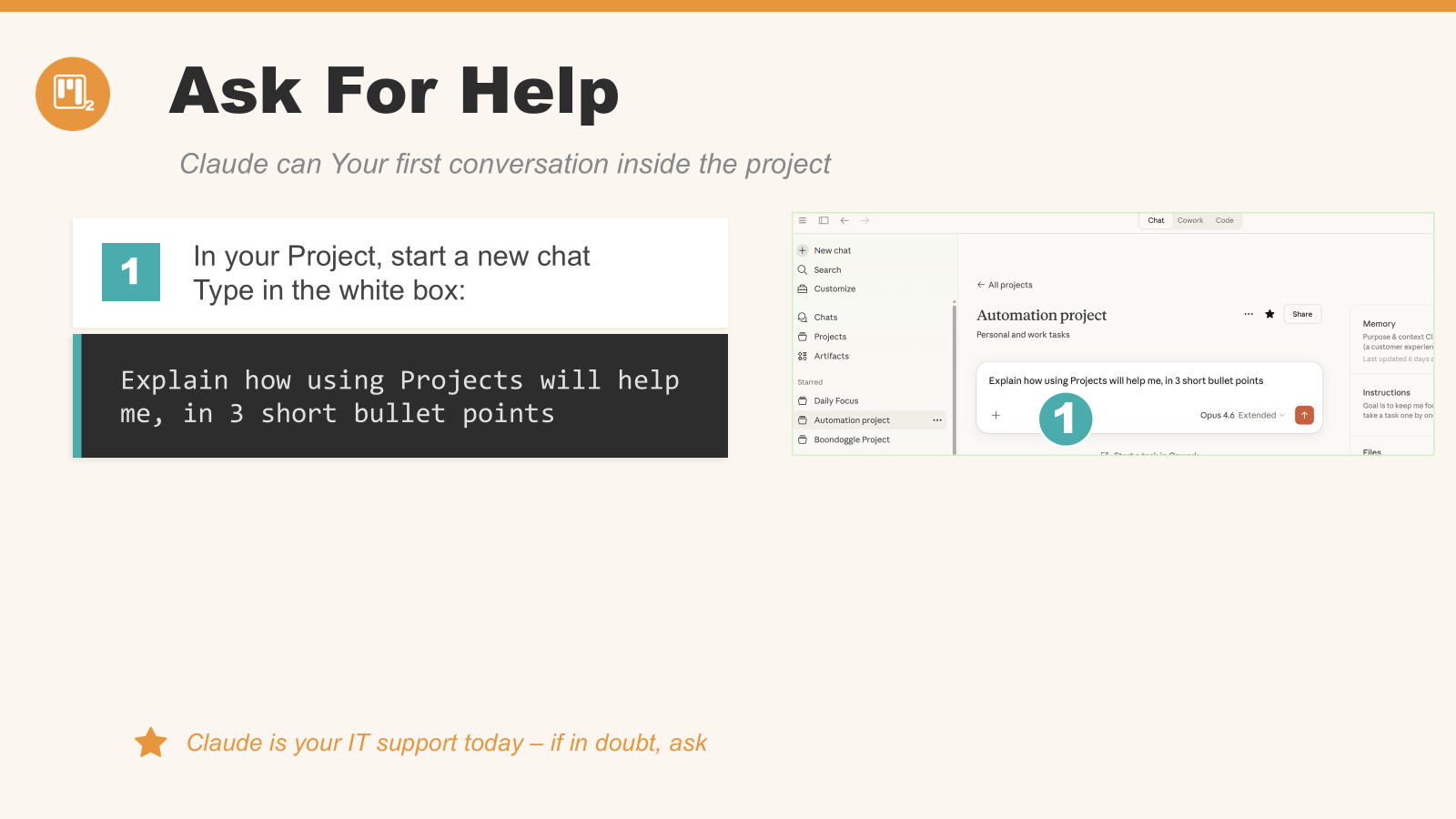
🎬 Instruction on how to create a project, see previous Blog: Step 2: Setting up project
Skills are the cookie cutter. They're how you create consistency across Claude. A skill is a small set of reusable instructions: "These are my brand guidelines. This is UK spelling. I never want long em dashes. Don't put bold formatting in the middle of a sentence - that's not my style."
Not sure where to start? Ask Claude directly:
Grammar is an easy one to start with. Beyond that, think about things like report formatting (a board report looks different to a quarterly report), the way you like to organise files, or anything else that's repeatable. Skills are like notes and macros that you can refer to in brand new conversations - little memories for Claude.
Watch the introduction to skills:

My grammar skill example: UK English, don't use long em dashes, don't try and rewrite the whole thing. Claude creates the skill and saves it into your settings. This part is confusing until you actually start using it - then you hit that "ah" moment where you realise you're copying and pasting the same instructions multiple times, and think: maybe Claude can just make me a skill for that.

Free vs Paid: Skills are available on the free version with some restrictions, so you can absolutely start experimenting.
🎬 Instruction on how to start using skills, see previous Blog: Step 3: Create first skill
🎬 Blog coming soon: I'll create a quick tour of Claude Addin for Excel & using skills to tidy up formatting etc.
Connectors plug Claude into apps you already use - no copy-paste, no switching tabs.
It is possible to create custom ones, if you have a tool that isn't already covered "out of the box".

To navigate to Connectors for the first time - check out this short video:
🎬 For a full walk-through of how to connect to tools like your email, calendar, Canva and mroe, see Step 4 of the previous blog: "Connections — Connect to Your Apps".
🎬 Blog coming soon - Connecting Claude, ChatGPT to apps + I'll create a version to demonstrate Excel as well.
As well as using connectors to plug into apps, you can connect Claude directly to folders on your computer. For example: "Access the folder on my project and look at the brand guidelines I've saved to my desktop."
Getting started options:
More advanced options (for when you're ready to go deeper):
A real example: Yesterday I was on a walk to Tesco's and had a boondoggle idea for an app. Using Claude Code on my mobile, I gave it instructions to access files on my computer, create the app, update my GitHub, and publish to Netlify. By the time I got back home, the app was live. That's the kind of thing the advanced setup unlocks - getting stuff done even when you're not at your desk.
But start simple. Cowork is the stepping stone onto Claude Code. A good first exercise: connect Cowork to a folder of copies of old family photos, and ask it to reorganise them. Low stakes, real result.

🎬 For a full walk-through of how to connect to folders, see Step 5 of the previous blog: "Give Claude Access to Your Computer".
Claude is your training buddy. The final tip: once you've had a play with a few of these features, go back to Claude and ask it to create your own learning plan.
That's how I got started ^
However, at some point it became a little overwhelming - there were so many youtube videos, tutorials, must do activities it started getting a bit confusing, so I created my own training plan (at first, just as boondoggle activity, but it actually ended up being useful and have since shared the document I created for others to use.
I worked out I can get it to reference it's own documentation at github.com/anthropics which they keep updated and I can refresh my training doc anytime I like.
if you are a more advanced user and want to explore how I used re built the plan I use - based on information I'd fed Claude about my setup and goals. It's another easy way to get Claude to help you get started.
🎬 Create your own - Includes link to a google document which you can copy/paste to create your own training plan including a full walk-through, see Step 6 of the previous blog: "How to create your own training plan".

I genuinely believe that one hour spent looking at how you're currently working can save at least one hour every week, using tools already available - without needing any technical skills at all.
The tools are advancing quickly, but the great news is that they're now even easier to get started creating mini-automations to remove manual tasks. Freeing up you and your team's time to get stuck in to the stuff that actually matters.
I share tips, examples and the occasional boondoggle on LinkedIn. The next live session is an Introduction to Claude Cowork/Skills for NZ time zones on 20 April - register here.
I run occasional beginner and intermediate workshops. For upcoming sessions, follow me on LinkedIn or check the blog for announcements.
I'm working on a couple of follow-up demos that I'll link here once finished:
Book in for a 1:1 session - the goal is within one hour to find practical ways you can use and connect tools to save you at least one hour a week.
Get in touch: linkedin.com/in/clairekav
For the more advanced hands-on version of this workshop, see: Introduction to Claude and Cowork


